

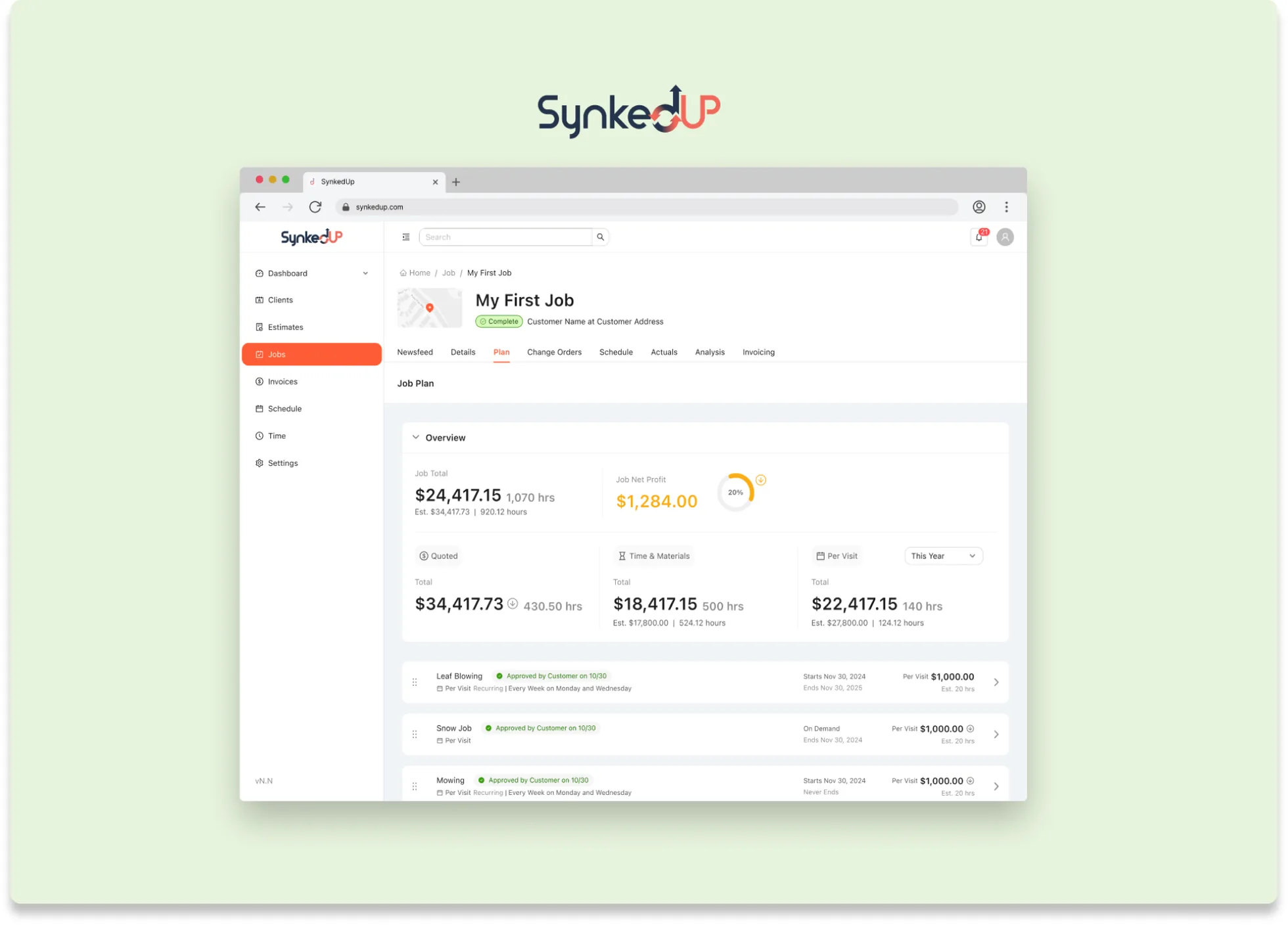

Brandcave · Feb 2024 – Apr 2025
SynkedUp Mobile
Simplifying time tracking for landscaping crews
- In short
- Brought the new design system to the mobile app, streamlining crew workflows with progressive disclosure.
- My role
- Junior UX designer, with a senior designer
- Timeline
- 2 months
- Focus
- B2B SaaS, Mobile, User journeys
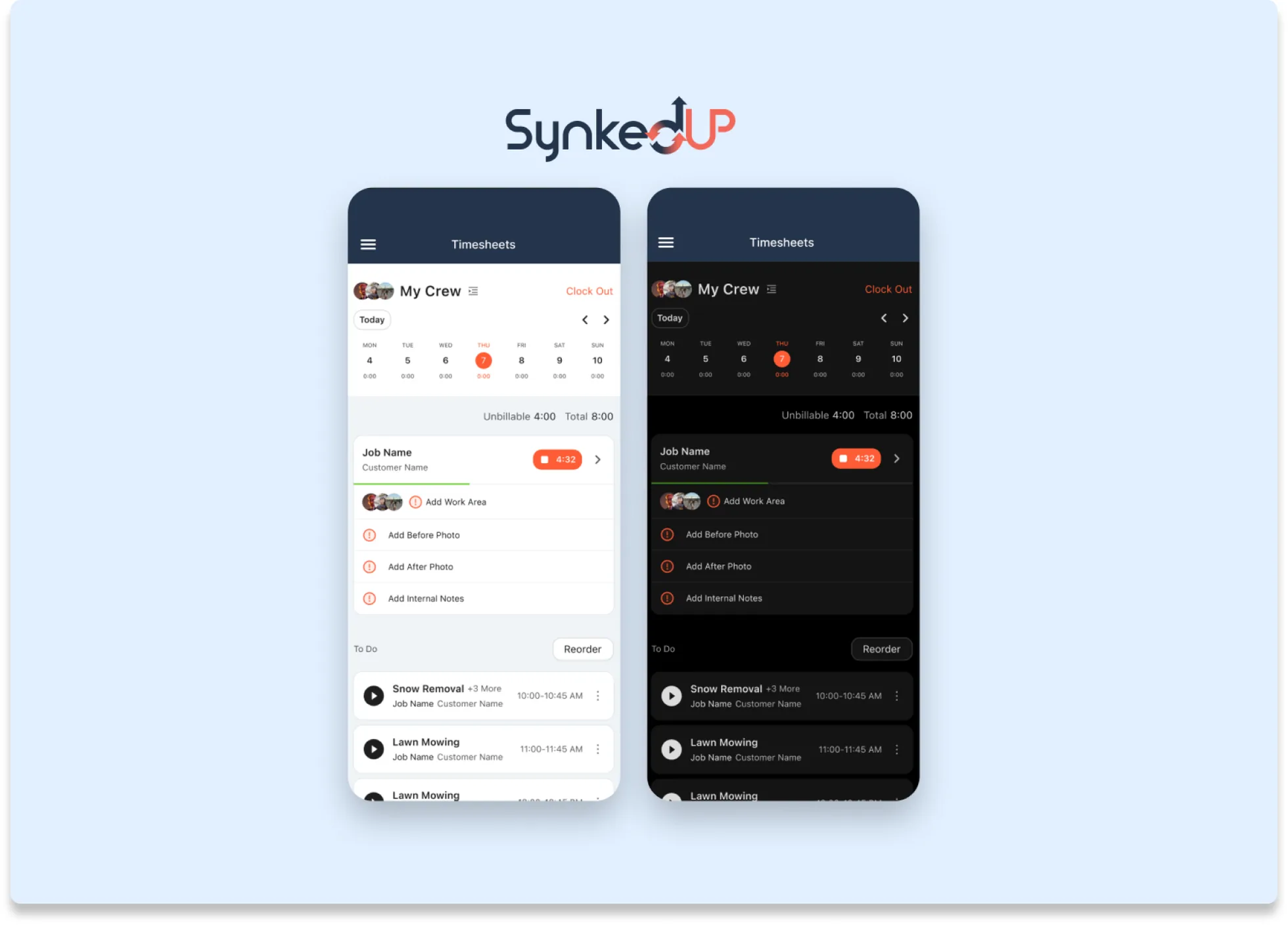
I worked as a junior designer on SynkedUp’s mobile app redesign, which helps landscape crew foremen track time, materials, and job progress in real time from field sites. Working under a senior designer over 2 months, I created high-fidelity screens, interactive prototypes, and component systems that transformed a clunky app into a tool designed around the daily life of busy foremen.
Context
Context
Foremen track their crew’s day from the field, and that data runs the business.
Users. SynkedUp’s mobile app is used by landscape crew foremen: team leaders who manage crews and track work throughout the day. Unlike the desktop platform, which office managers use, the mobile app serves people who are:
- Working outdoors on job sites, often in harsh conditions.
- Moving between multiple locations throughout the day.
- Managing physical labor crews (mowing, trimming, planting, hardscaping).
- Not particularly tech-savvy.
What foremen track, and where it goes
Foremen need to track
- Who worked on which work area, and for how long.
- What materials were used on each work area.
- Job completion status: In Progress, Complete, Blocked, or Skipped.
That data feeds SynkedUp’s scheduling, cost tracking, and job management
- Time & Materials pricing: actual hours and materials determine the final client invoice.
- Job management: completion status tells schedulers when jobs are done.
- Profitability: comparing estimated and actual costs shows which jobs make money.
Problem
The problem
The app fought how foremen actually work, so they stopped tracking in real time.
The existing mobile app worked, but it was slow, cluttered, and didn’t match SynkedUp’s new design system. More critically, it wasn’t designed around how foremen actually work, which led most of them to avoid real-time tracking and enter everything from memory at the end of the day.
- Slow, clunky, and unintuitive: simple tasks took multiple taps through menus, with scrolling and selecting. For non-tech-savvy foremen working outdoors in gloves, every bit of friction discouraged use.
- No clear hierarchy of actions: time tracking wasn’t the obvious primary action. Starting a timer was buried in menus alongside dozens of other features (viewing schedules, editing jobs, managing crew), all competing for attention equally.
- Didn’t match real-world workflows: the app assumed foremen always followed their schedule, but jobs get cancelled and things pop up. The app didn’t handle these scenarios gracefully, so foremen skipped real-time tracking.
- Inconsistent with the new design system: the visual design and terminology didn’t match SynkedUp’s new Ant Design system or the desktop experience, which confused users switching between platforms.
Challenge
Design challenge
Make time tracking the star of the app.
Our core design principle was to make time tracking so obvious and effortless that foremen would naturally use it in real time instead of waiting until the end of the day. That meant solving three design challenges:
- Make the happy path effortless. When everything goes to plan, starting and stopping a timer should be as simple as pressing a big button. No menus, no configuration, just start.
- Handle edge cases without cluttering the simple path. Real field work is messy. The app needs to support off-schedule jobs, crews splitting up work, retroactive entry, and mid-day corrections.
- Use language non-tech-savvy foremen understand. Natural, conversational language makes each action obvious and prevents confusion about what it does.
Solution
Scheduled work areas: the happy path
When foremen follow their schedule, it’s three taps.
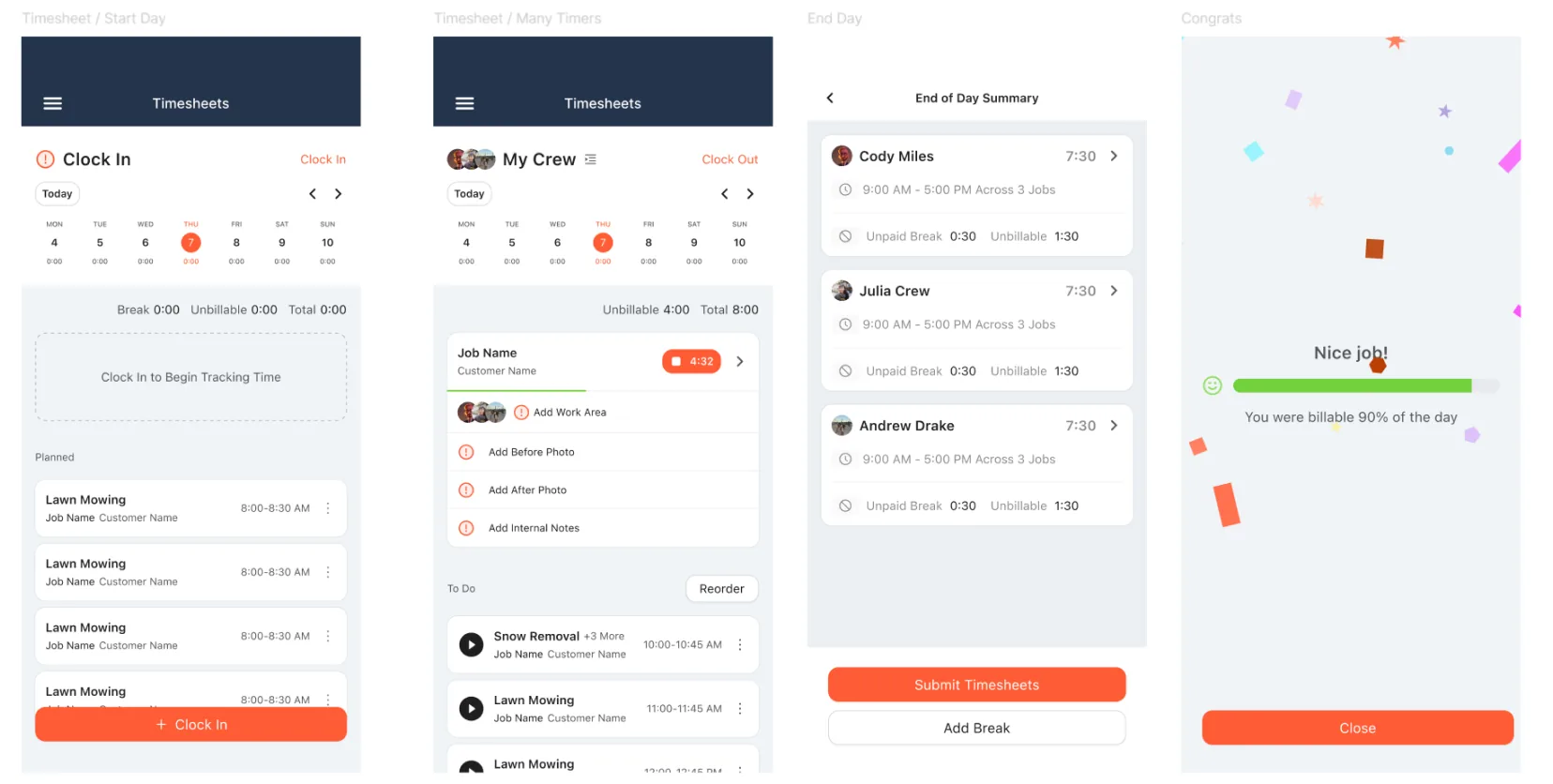
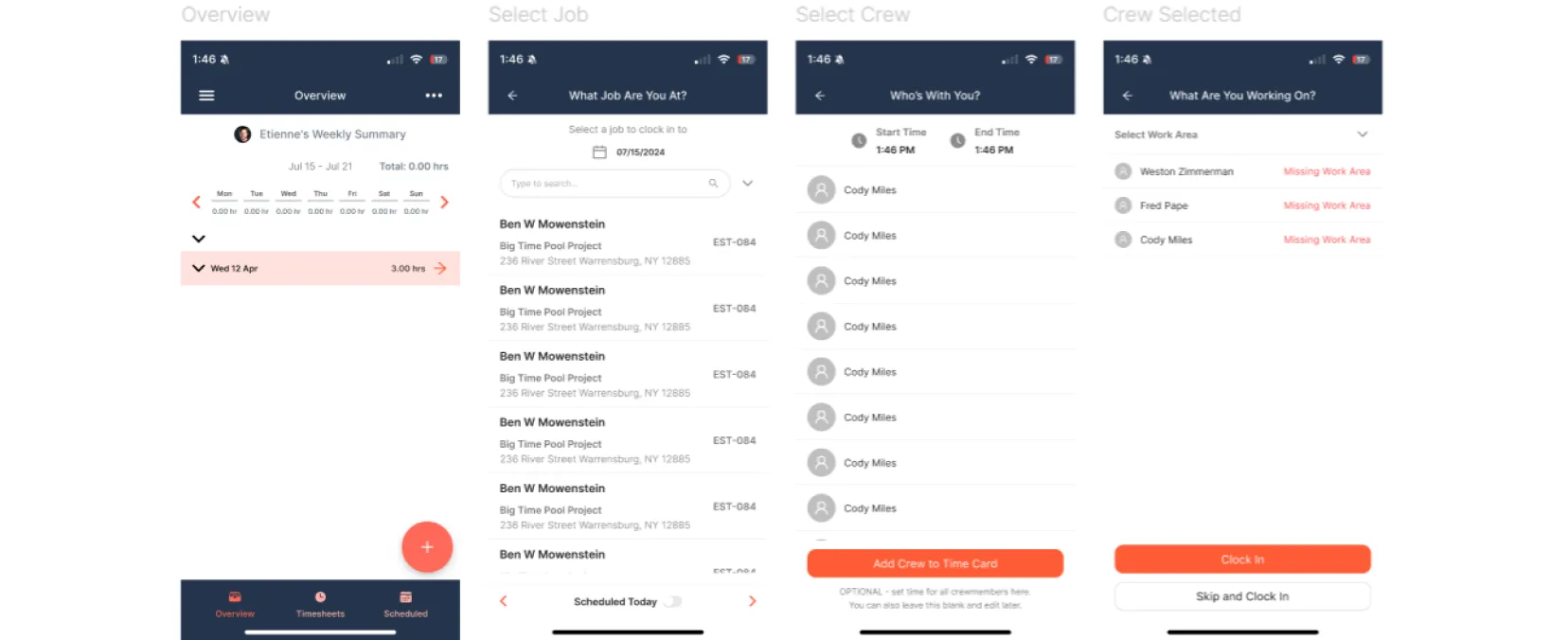
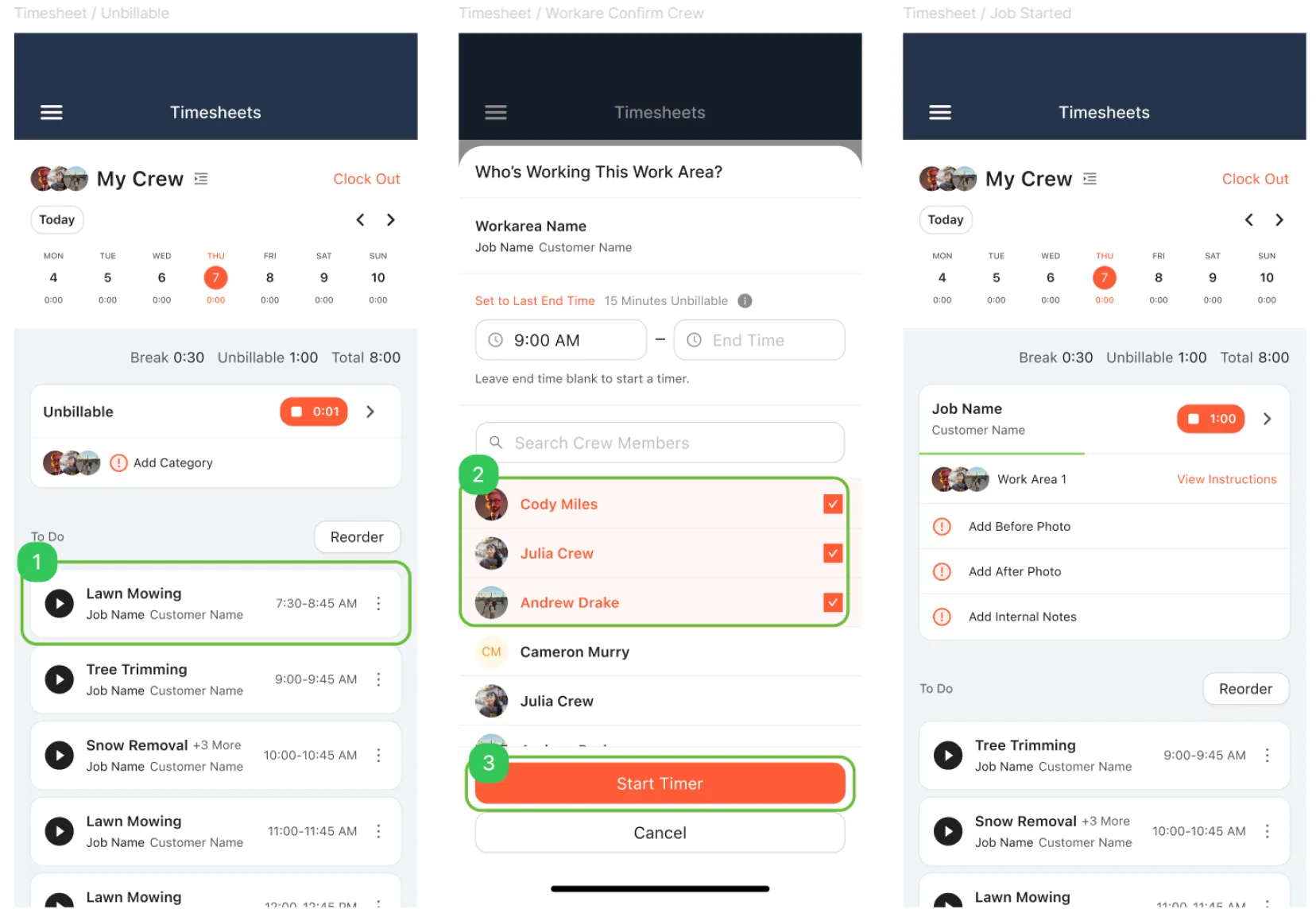
We organized the app around workflows, each optimized for a different field scenario. When foremen follow their schedule, the workflow takes three taps: select a work area from the To Do list, confirm the crew (no need to reselect if it’s the same crew since clock-in), and start the timer.
In the old app, users had to go to the Scheduled tab, select their job, select their crew, and assign work areas to crew members before starting the timer.
Clocking in at the start of the day adds two screens to pick the day’s crew. The app remembers that selection, so later the foreman just taps Start Timer. Foremen who prefer end-of-day logging can tap a job and enter start and end times by hand, then go straight to items and status updates.
Key design decisions I implemented
- Play button prominence: scheduled jobs show large play buttons, like a playlist of to-do items, which makes “start tracking” the obvious action.
- Natural language questions: modal headers use conversational phrasing: “What job are you at?”, “Who’s with you?”, “What are you working on?”
- Timer visibility: active timers show as orange badges replacing the play buttons, so it’s impossible to miss that tracking is happening. Each timer shows elapsed time, crew member avatars, the current work area, and to-do items.
Searching jobs: off-schedule work
Time first, details after, for when the plan changes.
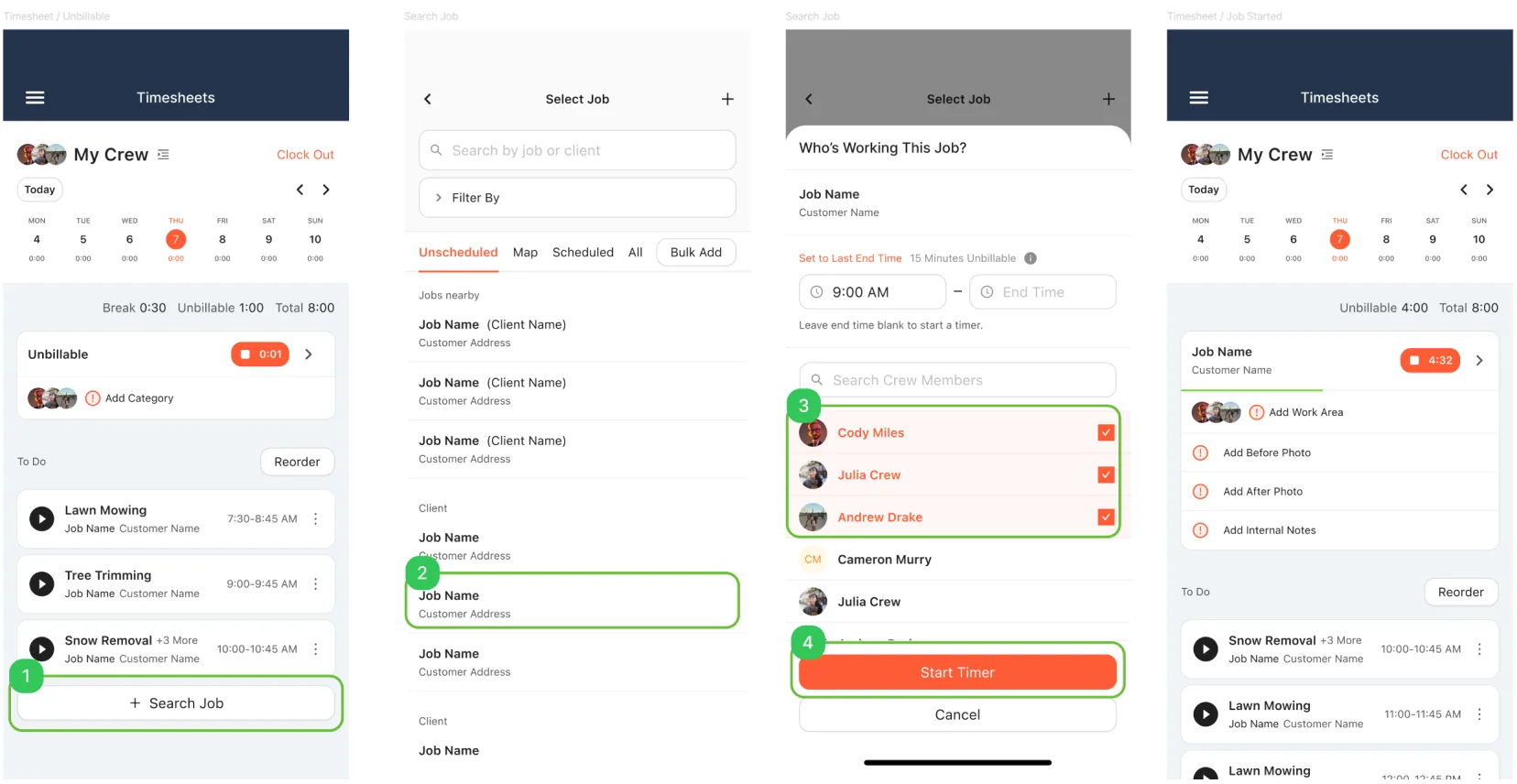
When foremen need to work a job that isn’t on their schedule (weather changes, client requests, impromptu work), the workflow shifts: tap Search Job at the bottom of the To Do list, find the job, confirm the crew, and start the timer.
Because work areas aren’t known upfront, my design runs the timer at the job level with the crew selected. When it stops, the foreman distributes the time worked across work areas. This handles the messy reality of field work, where plans change mid-day.
The time distribution screen lets foremen
- Split time equally across work areas.
- Assign different hours to different crew members.
- Add materials per work area.
- Set a status per work area.
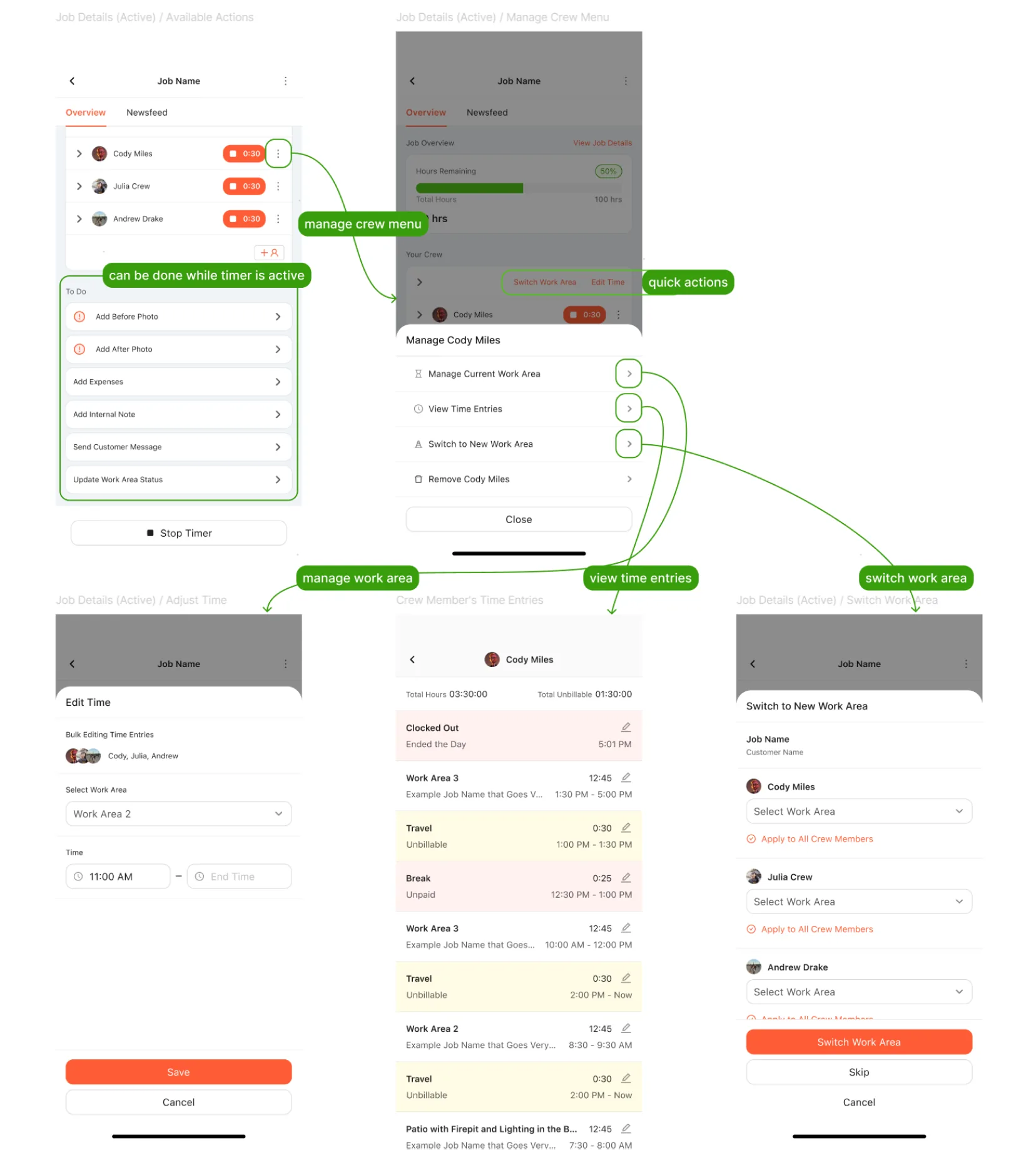
Managing job details: mid-day corrections
Fix mistakes without stopping the clock.
Foremen make mistakes: they forget to stop a timer or pick the wrong work area. They need to correct them without starting over. While timers are running, foremen can:
- Switch crew members between active work areas.
- Adjust time entries if a timer was forgotten.
- View job details and time breakdowns.
- Add materials or update status without stopping the timer.
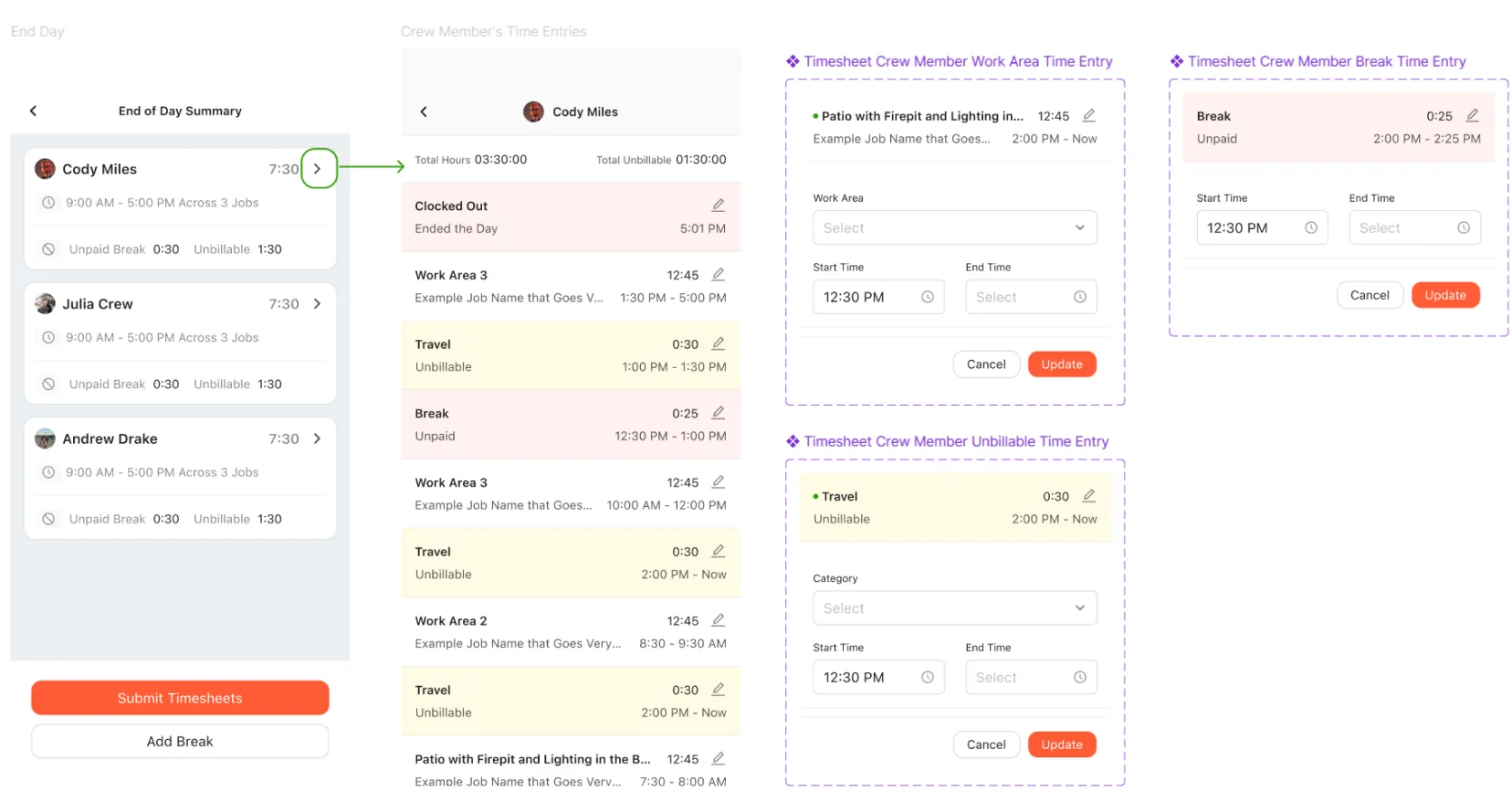
Ending the day: clock out and review
One last look before the timesheet goes in.
When foremen clock out, they see:
- A summary of the day’s time entries across all crew members.
- Every work area worked, with its status.
- Unbillable time: breaks, travel, idle time.
- The chance to make final corrections before submitting.
Key Decisions
Language precision
Words chosen to match the foremen’s mental models.
Keeping this language consistent across 20+ screens reduces cognitive load for non-tech-savvy users.
- Clock In, not “Start Day”: matches the punch-clock language laborers know.
- Start Timer, not “Begin Work Area”: clearly about tracking time, and works for both work areas and jobs.
- “Who’s with you?” and “What did you work on?”, not “Select crew members” or “Select work area”: conversational and friendly.
Progressive disclosure of complexity
Simple by default; advanced options only when needed.
The scheduled work area path needs just three taps: select job, select crew, start timer. All other complexity (crew switching, time distribution, retroactive entry) only appears when it’s needed.
I designed modal hierarchies that default to the simplest option (the whole crew on one work area), reveal advanced options only when users need them, and use expandable sections instead of separate screens to keep context visible.
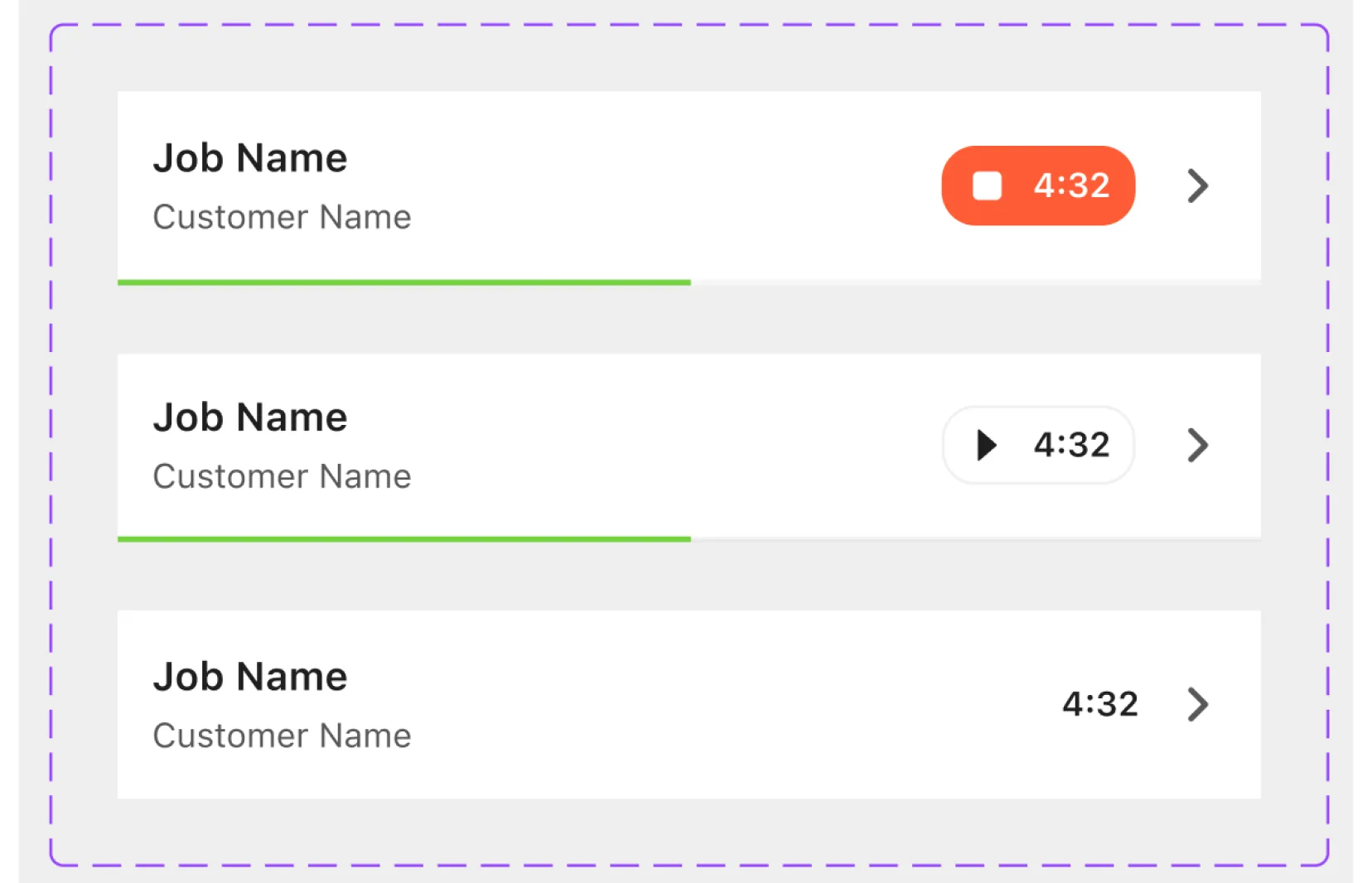
Timer state as a visual anchor
The home screen alone shows what the crew is doing.
The timer badge became the visual star of the interface. Just by looking at the home screen, a foreman can see whether the crew is working, stopped (on break), or done for the day.
- Active: an orange timer badge showing elapsed time.
- Stopped: a white outline button with the recorded time.
- Past: text showing the time elapsed.
Results
Results and impact
Launched summer 2025 and used by foremen in the field.
The redesigned mobile app launched in summer 2025 and is now used by foremen tracking time in the field.
What changed, for whom
System improvements
- Time tracking streamlined around a “play button” entry point for scheduled work.
- Workflows that support both real-time and retroactive entry.
- Complex scenarios (crew switching, job searching, time distribution) handled without cluttering the simple defaults.
- Visual design and components aligned with Ant Design.
- Clear language conventions that separate “Clock In/Out” from “Start/Stop Timer.”
For foremen
- Scheduled work areas show an immediate play button, with no menu navigation needed.
- Conversational language (“Who’s with you?”) reduces confusion for non-tech-savvy users.
- Prominent timer badges prevent forgetting to stop tracking.
- Retroactive entry supports foremen who prefer end-of-day logging.
For contractors
- More accurate time tracking improves Time & Materials pricing accuracy.
- Status updates (Complete, Blocked, Skipped) improve scheduling and project management.
- Material tracking per work area improves job costing.